





Live Q&A tools with Kahoot! 360

Add live Q&A to any presentation, from town halls to training

Add live Q&A to your Kahoot! 360 presentation alongside polls, quizzes and word clouds. Your audience asks and upvotes from any device, and you decide what goes on screen.
Use it in town halls, meetings, training, onboarding, workshops, webinars and events, in the room, online or hybrid.

Try it now with Kahoot! 360, the ultimate workforce engagement platform.

Get Kahoot! 360 Pro from $19 /mo. Save 20%. Offer ends October 12.

Get started

Hero

Trusted by leading companies worldwide

How to boost engagement with Q&A on Kahoot! 360

Q&A on Kahoot! lets you transform presentations, events, and training sessions into engaging two-way experiences by allowing your audience to get involved without disturbing your flow.

LIVE QUESTIONS
Let anyone ask, from any device

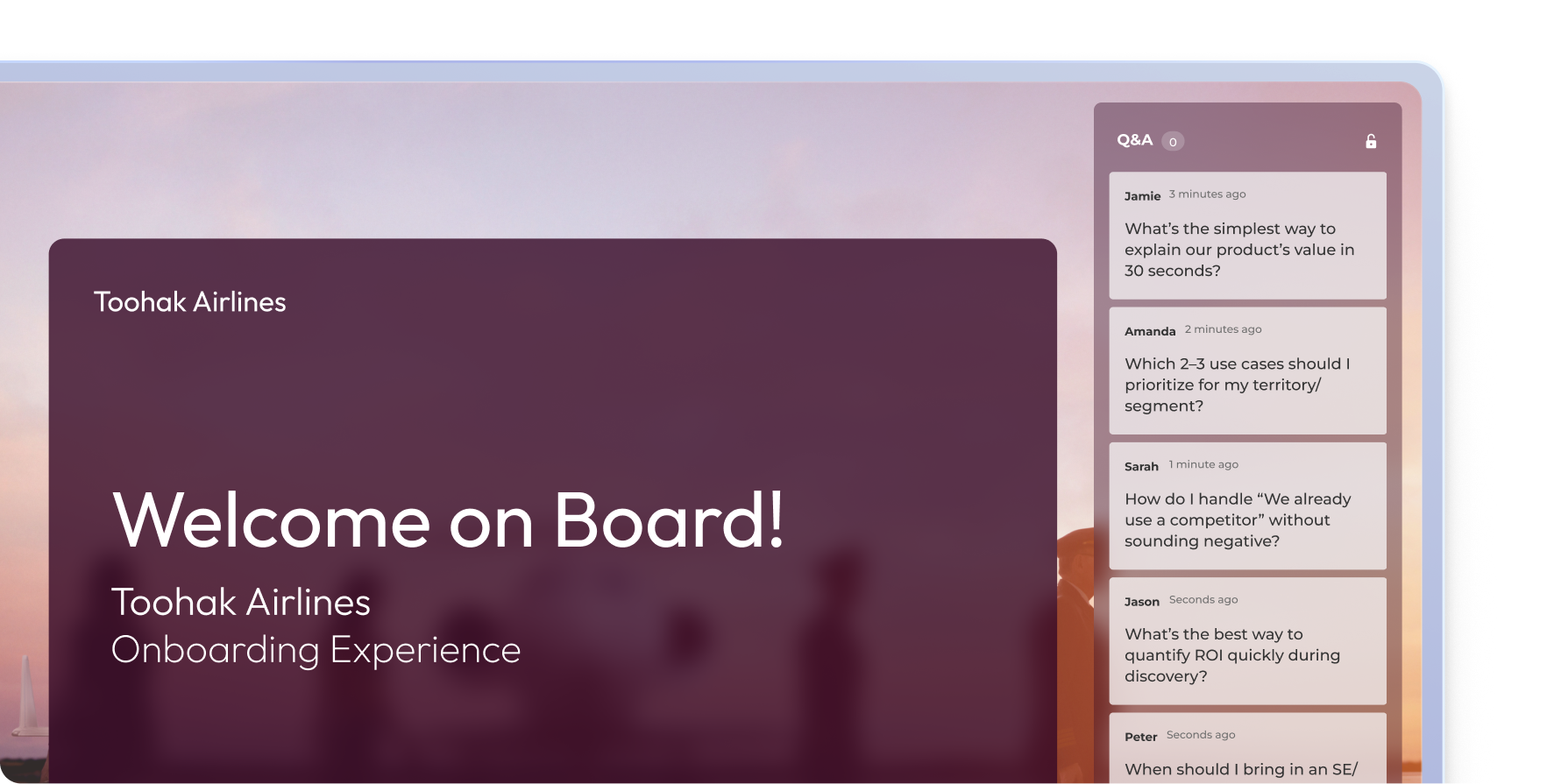
Participants submit questions from their phone or laptop at any point in your session, no app or account needed. Remote, hybrid and in-person attendees join the same Q&A, so the questions people usually hold back finally get asked.

Kahoot live Q&A panel during a Toohak Airlines onboarding presentation with employee questions streaming in real time

MODERATION
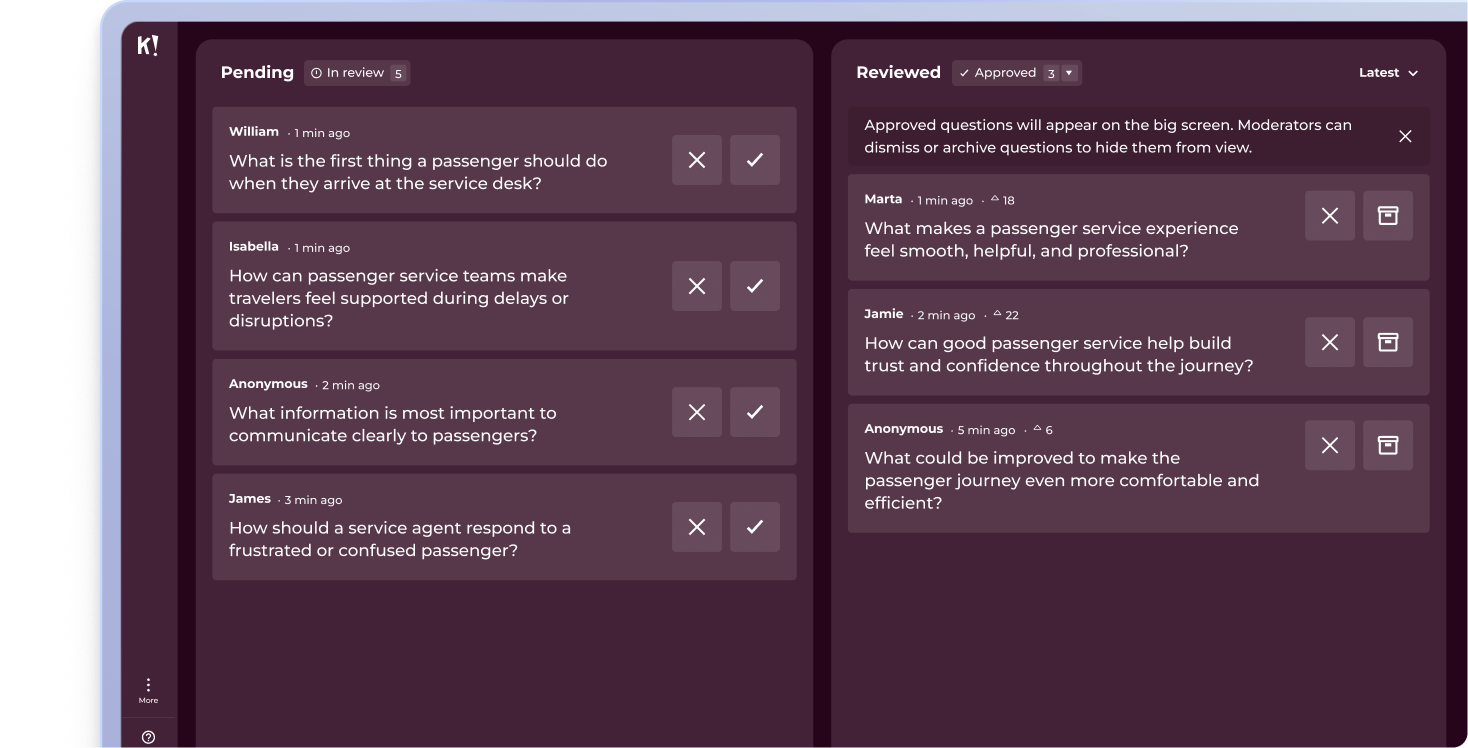
Approve every question before it is displayed

Review, approve or dismiss questions in real time, or hand moderation to a colleague so you can focus on presenting. Nothing reaches the screen until you say so, keeping town halls, keynotes and trainings professional and on topic.


Kahoot Q&A moderation dashboard with pending and reviewed audience questions split into two columns for a live session

UPVOTING
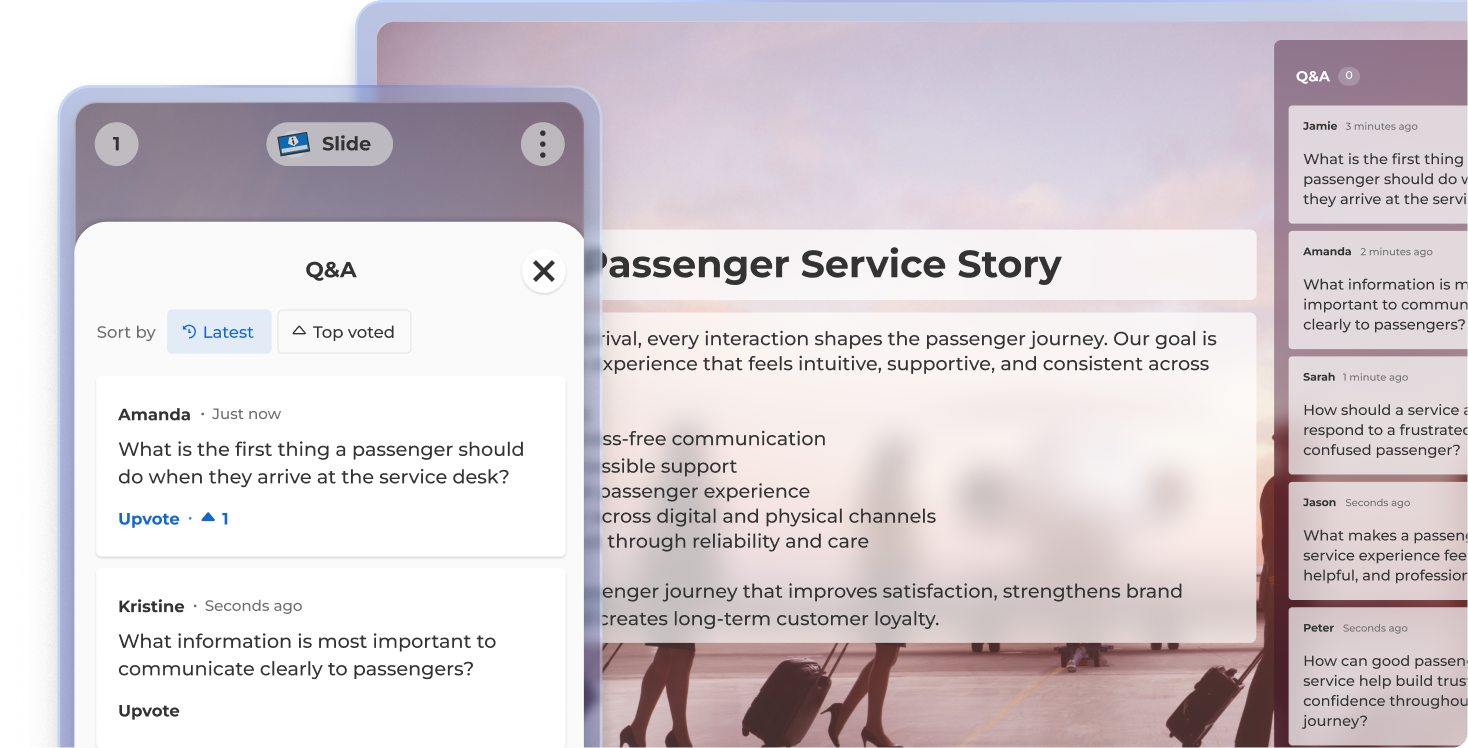
Answer the most popular questions

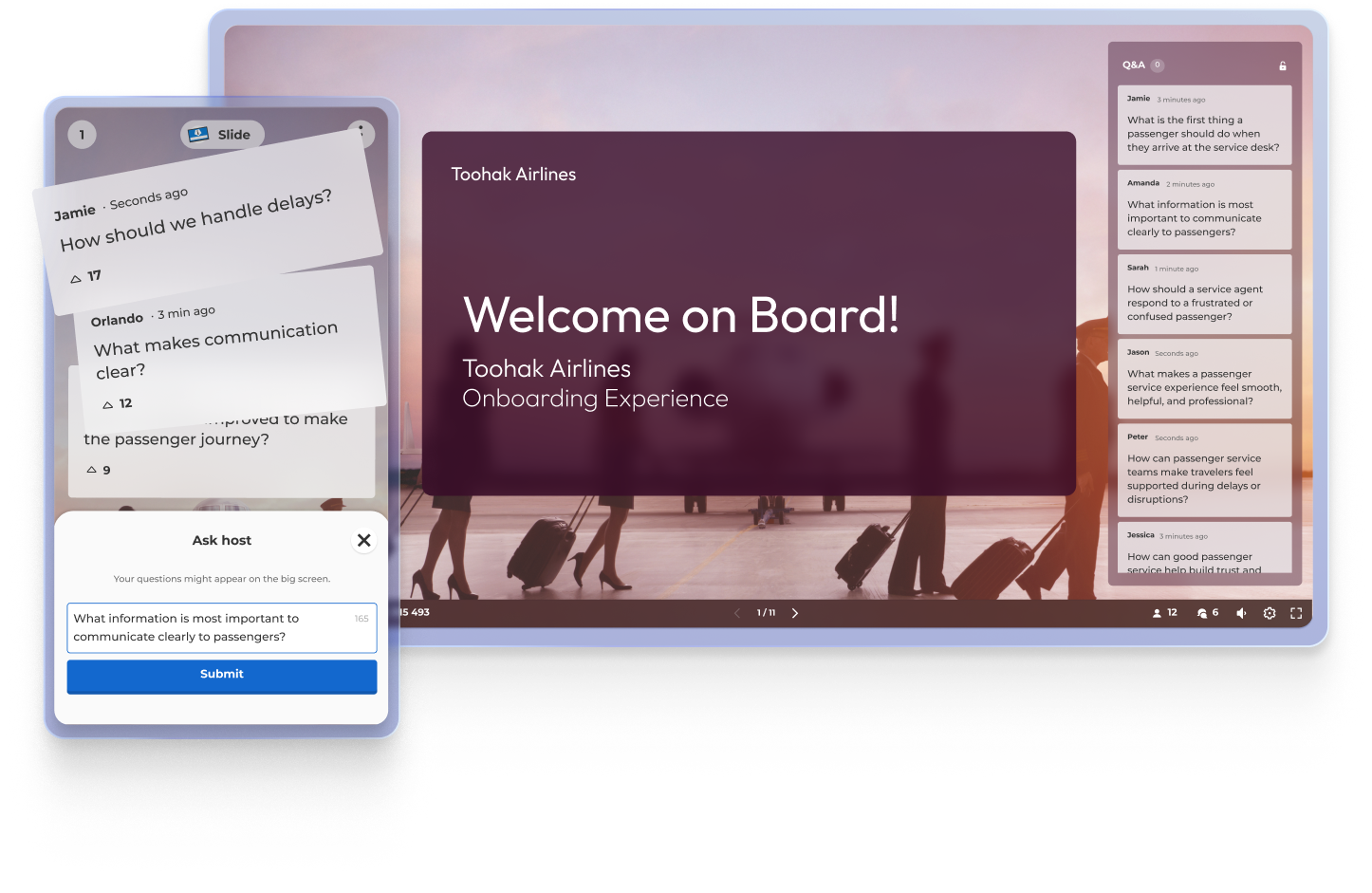
Participants upvote the questions they care about, so the most important ones rise to the top automatically. Spend your Q&A time on the questions with the most support behind them, not just the loudest voice in the room.


Kahoot live Q&A view showing a Passenger Service Story slide, mobile Q&A panel with upvoting, and audience questions feed on the right

SUMMARY
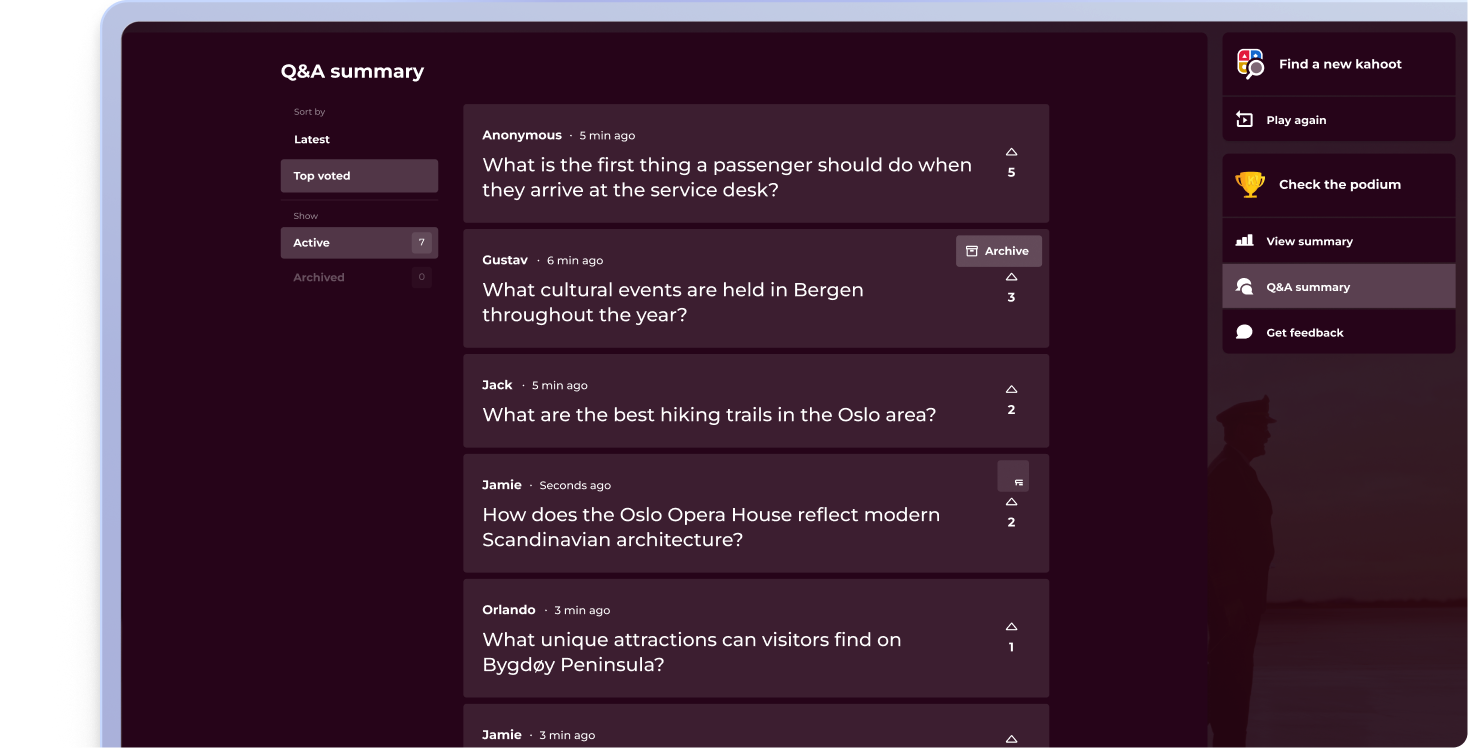
Every question captured for follow-up

Show all submitted questions at the end of your session for a complete Q&A round. Every question is also saved in your session report, so you can follow up on the ones you did not reach and use them to shape your next session.


Kahoot Q&A summary screen showing top-voted audience questions after a session, with options to play again, view summary, or get feedback

The most engaged workforces ask better questions

Join millions of professionals giving their audience a voice with Q&A in Kahoot! 360, the ultimate workforce engagement platform. Turn any presentation, training, or event into an engaging experience that drives results across your organization.


Buy now

Join leaders achieving awesome business results

4 benefits of using Q&A

Report iconBoost audience engagement
Q&A encourages active participation, turning listeners into contributors and keeping attention high throughout the session.

people iconCreate a two-way experience
Transforms presentations and training sessions from one-way delivery into interactive conversations, building connection and trust.

Icon Report Gather real-time insights
Reveal what your audience is curious about or confused by, helping you clarify doubts and tailor your message on the spot.

Course iconIncrease knowledge retention
When people ask and hear questions in context, they’re more likely to retain information and stay involved throughout

Frequently Asked Questions about Q&A with Kahoot! 360

What is a Q&A?

A Q&A (question and answer) session allows your audience to submit questions in real time during a presentation, training session, or event. It’s an interactive way to keep participants engaged, whether they’re joining remotely, in-person, or in hybrid settings.

How does Kahoot! 360 support Q&A sessions

Kahoot! 360 includes an interactive Q&A feature that lets presenters run seamless question-and-answer sessions without disrupting their flow. Attendees can submit live questions from their devices, and the host can choose which ones to address during or after the session.

What are the benefits of using a Q&A tool?

Using a Q&A tool like Kahoot! 360 increases engagement, encourages participation, and helps surface important insights from your audience. It turns passive listeners into active participants, making it perfect for events, presentations, training, and more.

How can I incorporate audience feedback in real-time during presentation?

Q&A lets participants submit questions from their own devices at any time during your presentation. This makes it easy for you to clarify key points, adapt your content in real time, and keep your audience actively involved without interrupting your presentation flow.

Is Kahoot! 360 a Q&A platform?

Q&A is one of many features in Kahoot! 360, the ultimate workforce engagement platform designed to transform presentations, events, and training sessions into impactful two-way experiences.

Can I moderate live questions during a session?

Absolutely. Kahoot! 360 gives hosts full control over which live questions are shown, ensuring that your Q&A session stays professional and on-topic.

How can I enable participants to submit questions during a presentation?

On Kahoot! 360, you can enable participants to submit questions from their own devices at any time during your presentation without breaking your flow. The feature is integrated into the presentation interface, allowing attendees to join the conversation seamlessly from their web browser or the Kahoot! app.

How do I ensure Q&A works smoothly for remote, hybrid, and in-person audiences simultaneously?

Kahoot! 360 ensures smooth Q&A across all settings by allowing everyone—remote, hybrid, and in-person—to join the conversation and submit questions from their own devices using the same web link or app. This centralized platform boosts interaction across any setting equally.

Can I filter or moderate submitted questions with a digital Q&A tool?

Yes. As an example Kahoot! 360 provides moderation controls that allow the presenter or a moderator to review, filter, and approve questions before they are visible to the entire audience or the presenter. This ensures all discussions remain professional, focused, and relevant to the topic.

Can I save the list of questions submitted with a digital Q&A tool for review after the event?

Yes, with Kahoot! 360 all questions submitted are saved as part of the session report, allowing you to review them post-event. This valuable data helps you identify topics for future sessions and ensure all questions, even unanswered ones, receive a follow-up.

Can I integrate the Q&A with other interactive elements like polls and quizzes?

Yes, a tool like Kahoot! 360 allows seamless integration of Q&A with quizzes, polls, and other activities within a single session. This enables you to alternate between information delivery, knowledge checks, and live questions without ever leaving the Kahoot! platform.

Does Kahoot! allow the audience to upvote or prioritize questions submitted by other participants?

Yes, Kahoot! 360’s Q&A feature allows participants to upvote questions submitted by others. This crucial functionality enables the moderator or presenter to quickly prioritize the most popular and relevant questions for the entire audience, streamlining the session.

Can Kahoot! Q&A data be used to refine and improve future presentation content?

Yes, the saved Kahoot! Q&A data is invaluable for content refinement, as it highlights audience knowledge gaps and areas of highest curiosity. This feedback helps you tailor future presentations to directly address the topics the audience is most interested in or confused by.

What is the best live Q&A tool for town halls and all-hands meetings?

A good town hall Q&A tool needs three things: moderation so the session stays on track, upvoting so leaders answer the questions most people care about, and the scale to include the whole organization at once. Kahoot! 360 are used for this. Kahoot! 360 combines moderated, upvoted Q&A with live polls, quizzes and word clouds in one platform, requires no app or account from attendees, and supports enterprise requirements such as SSO, SCIM and SOC 2 Type II certification.

Do participants need an app or account to ask questions?

No. Participants join Kahoot! 360 sessions from any web browser using a PIN or link. They can also use the Kahoot! 360 app if they prefer.

Explore more use cases