









Kahoot! 360 Speaker toolkit

The ultimate speaker toolkit is now available on Kahoot! 360

Everything a presenter needs to deliver high-impact, engaging sessions from professional mode controls to real-time Q&A moderation, speaker notes, and a full presenter view.

Turn any presentation, training, or event into an engaging experience with Kahoot! 360, the ultimate workforce engagement platform.

Get Kahoot! 360 Pro from $19 /mo. Save 10%. Offer ends July 12.

Get started

Hero

Trusted by leading companies worldwide

Accenture logo
Deloitte logo
Loreal logo
Ikea logo
VW logo
KPMG logo

SPEAKER TOOLKIT

Everything you need to present with confidence

Instantly create engaging sessions and get actionable insights with Kahoot! 360. The speaker toolkit lets hosts and presenters run presentations confidently, with full control to adapt pace and interactivity to perfectly fit the room.

PROFESSIONAL MODE

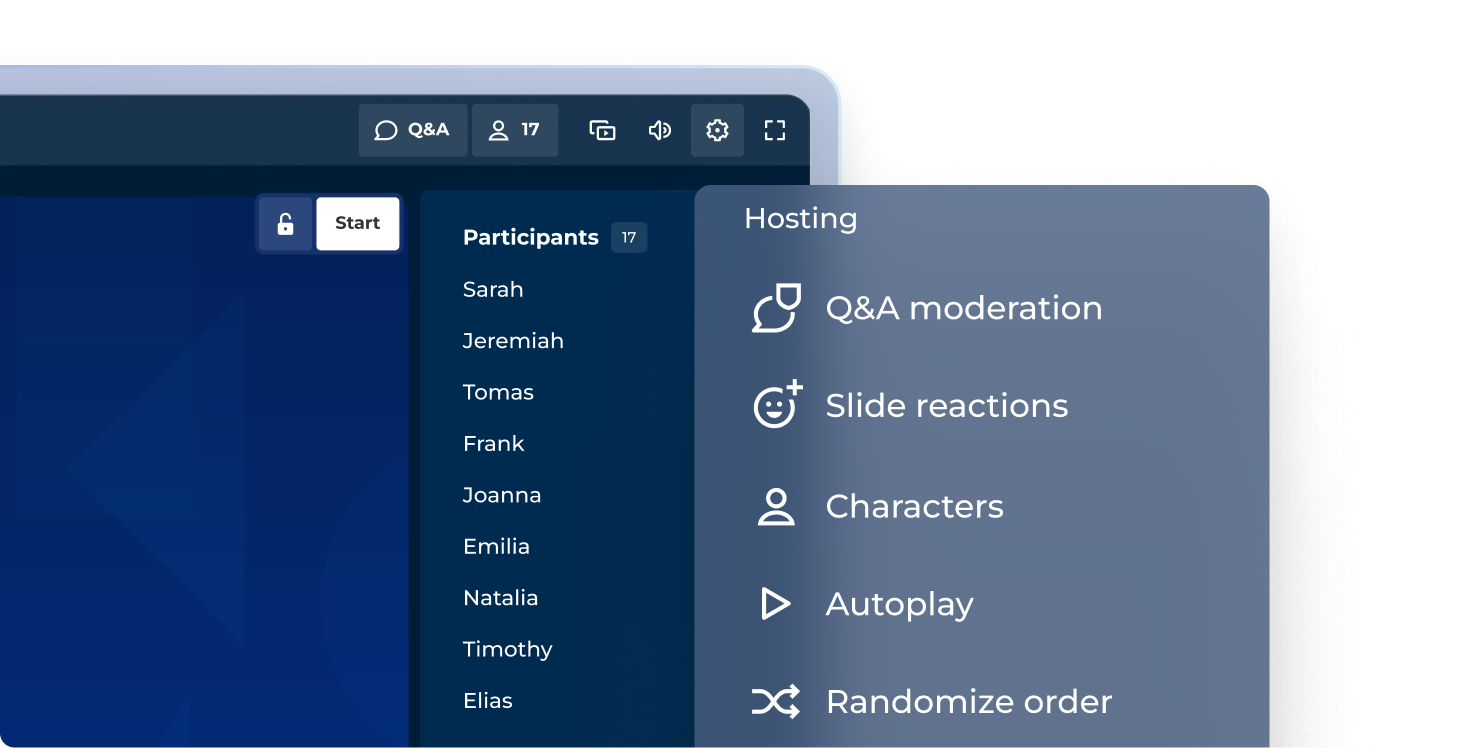
Host engaging sessions with our professional hosting experience

Make any presentation more engaging with our professional hosting experience. Control how you incorporate interactive questions, points, and podiums to match the tone of any session!.

Kahoot hosting controls panel showing 17 participants and options for Q&A moderation, slide reactions, characters, autoplay, and randomize order

COMING SOON: PRESENTER VIEW

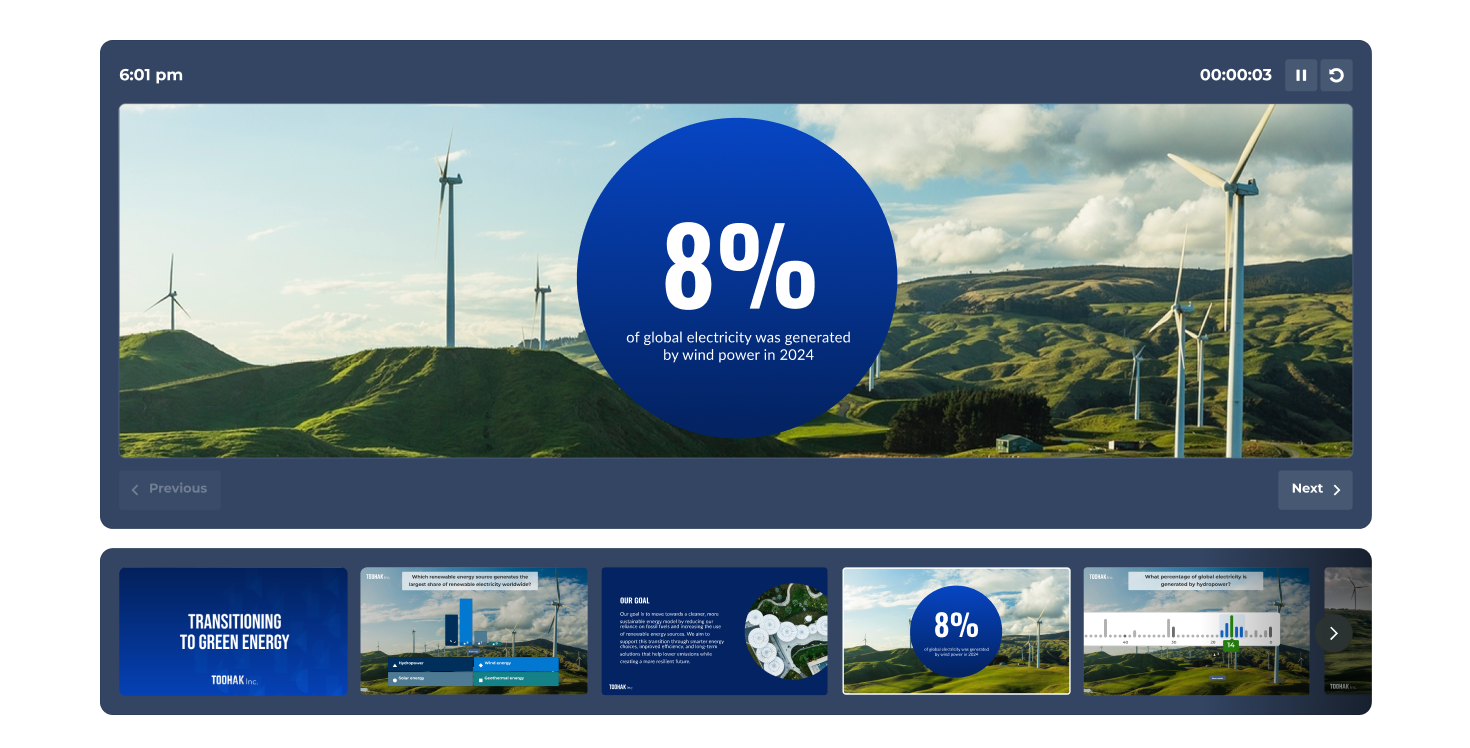
Navigate confidently with full presenter view

See your current slide, a preview of what’s coming next, live participant activity, and your timer, all in one dedicated presenter view that only you can see.

Kahoot presentation slide showing wind turbines on green hills with stat: 8% of global electricity generated by wind power in 2024, plus slide strip

MODERATED Q&A

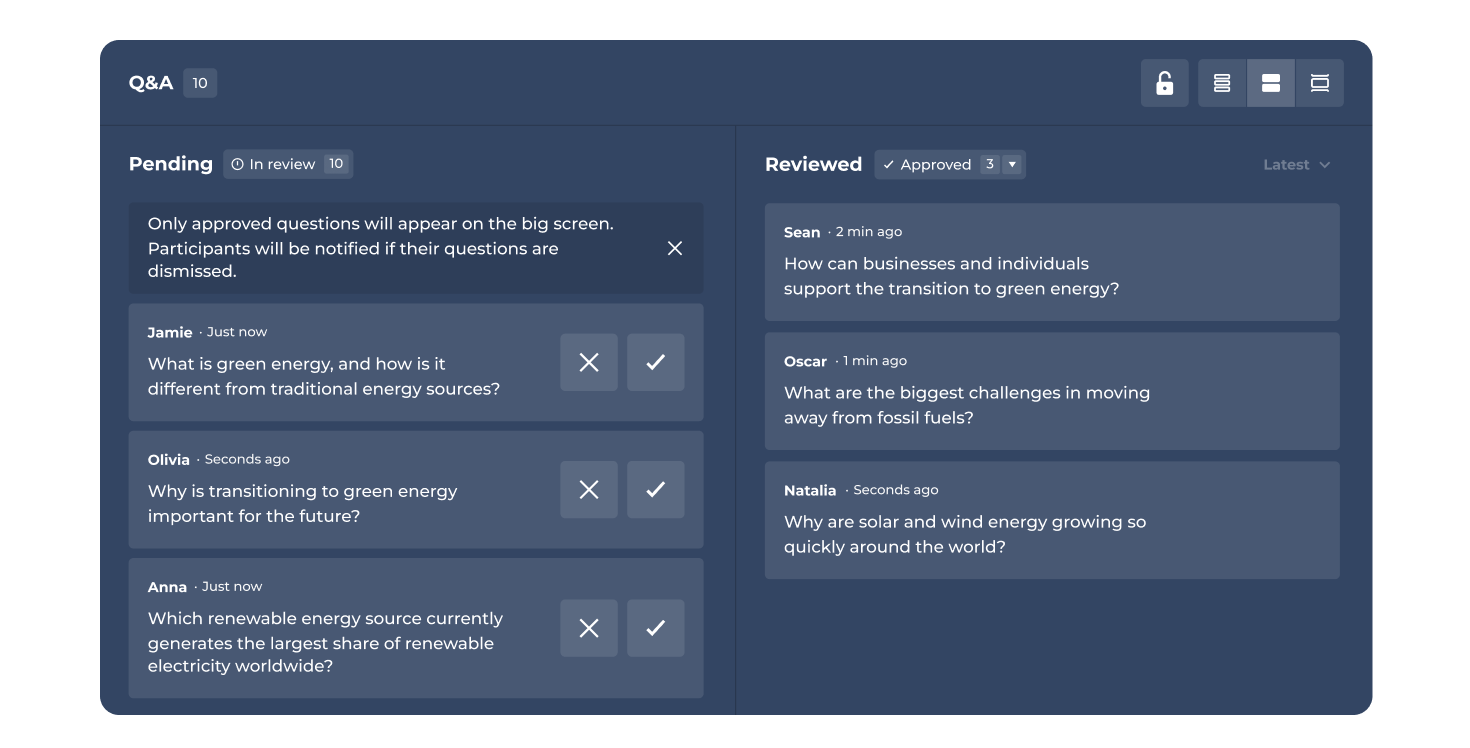
Host or delegate live Q&A moderation

Keep your session on track by moderating questions yourself or assigning a dedicated moderator. Approve, highlight, or dismiss questions before they go live to the audience.

Kahoot Q&A moderation dashboard showing 10 pending and 3 approved participant questions about green energy during a live session

COMING SOON: SPEAKER NOTES

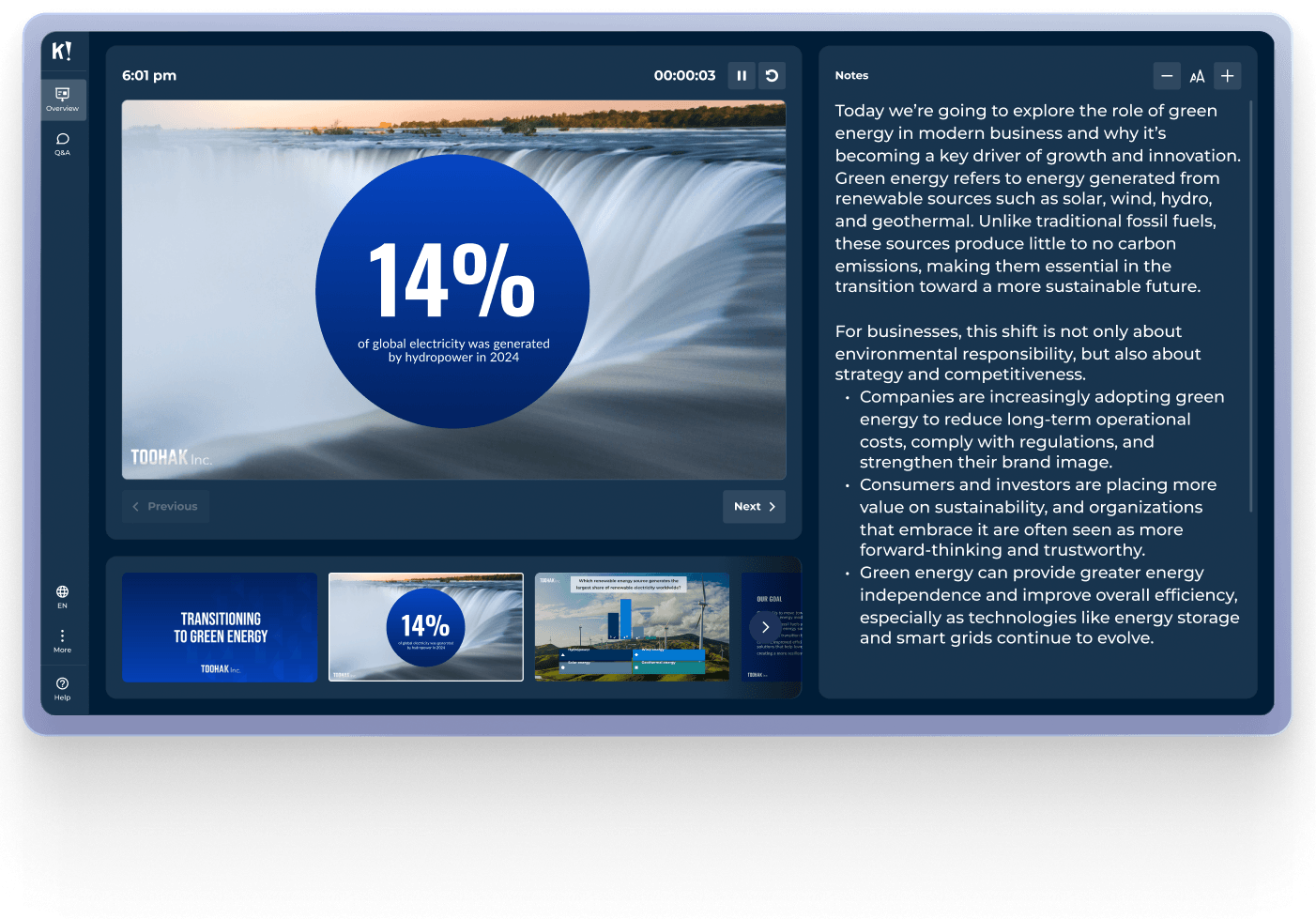
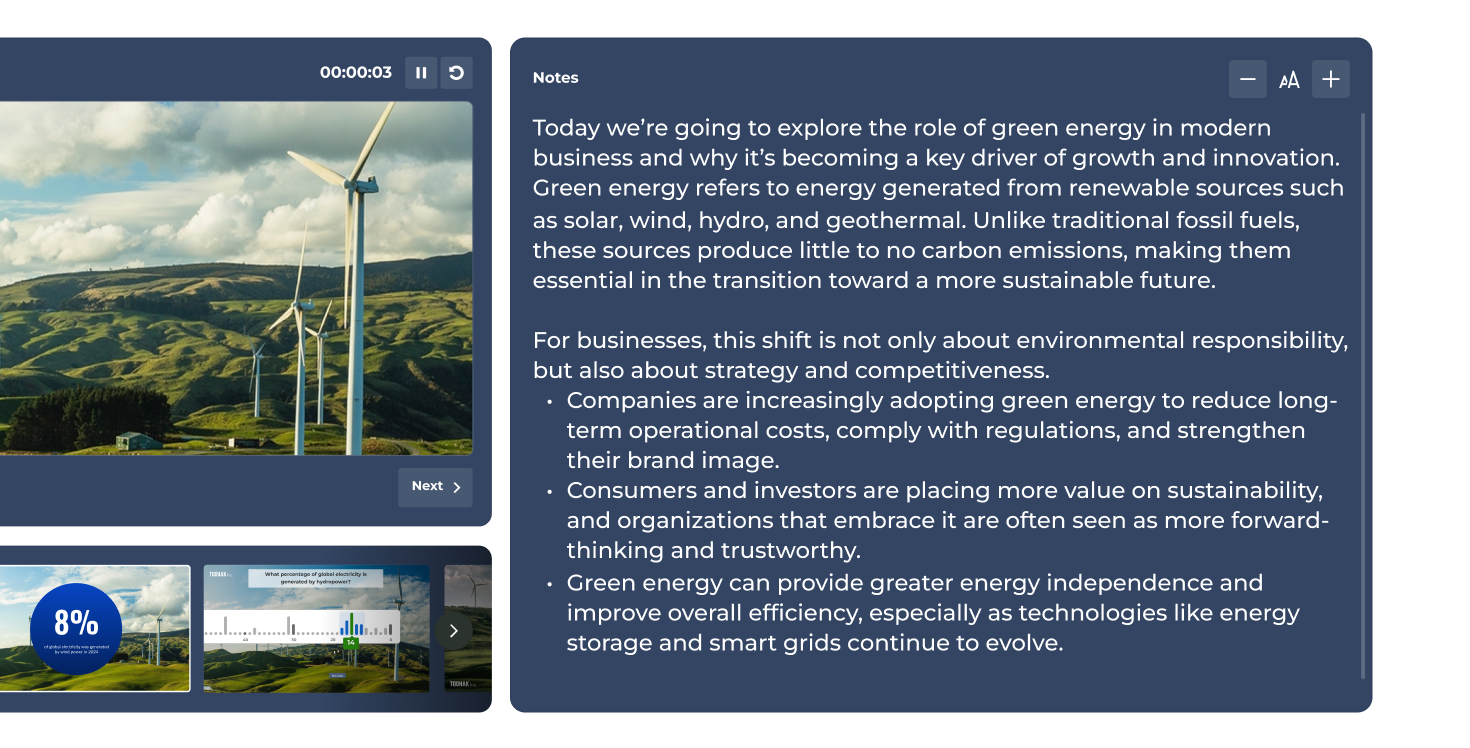
Add speaker notes and keep talking points in view

Add speaker notes to each slide and access them privately during your session. Stay on message, remember key stats, and deliver a polished presentation every time.

Kahoot presenter view with wind turbine slide displaying 8% wind power stat alongside editable speaker notes on green energy and business sustainability

The most confident speakers use Kahoot! 360

Join thousands of professionals who run high-impact presentations, trainings, and events with Kahoot! 360’s complete speaker toolkit.

Get started

Deliver secure, scalable engagement to enterprises with Kahoot! 360

User and group management

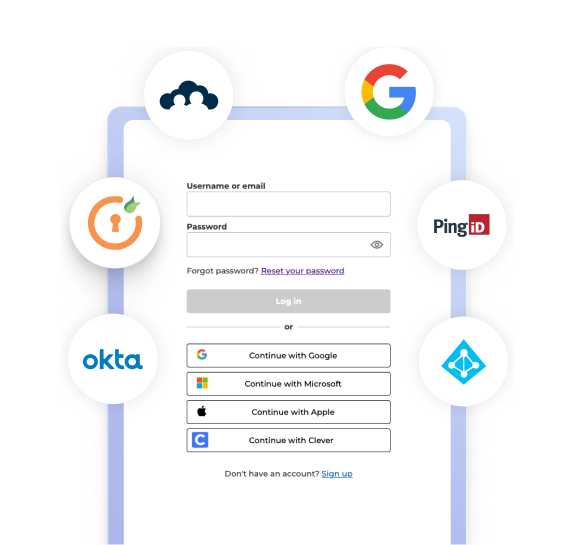
Manage your team safely and efficiently with single sign-on (SSO) and SCIM provisioning.

Kahoot! login screen showing fields for username and password, along with multiple Single Sign-On (SSO) options.

Security and compliance

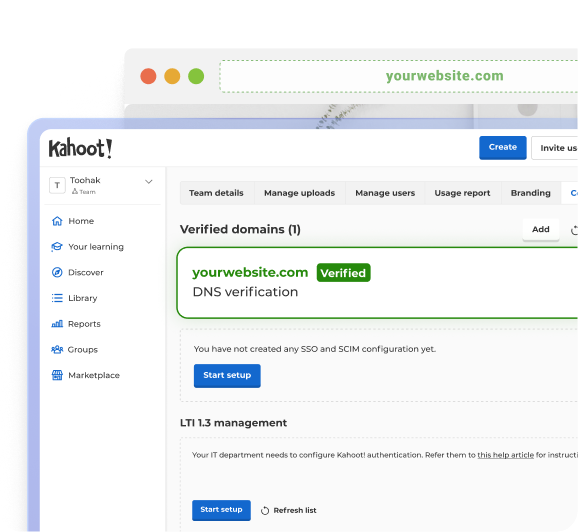
Protect your data and your people with GDPR-aligned practices and SOC 2 Type II certification.

The Kahoot! administrator dashboard showing a verified domain and SSO configuration settings.

Insights and integrations

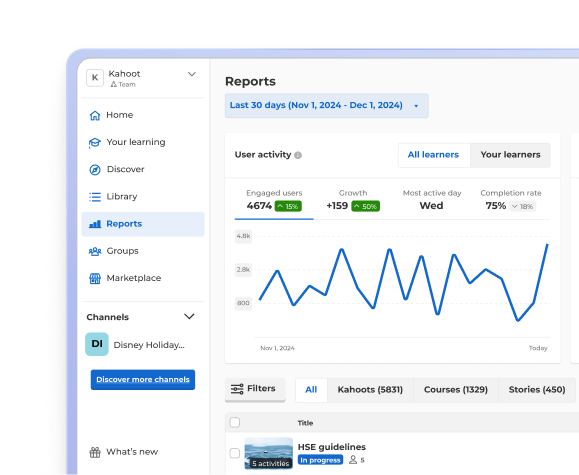
Track progress and performance with reporting and analytics that integrate with your existing tools.

A Kahoot! Reports dashboard displaying user activity metrics and an engagement line graph.

Join leaders achieving awesome business results

Explore more use cases

Frequently asked questions

How do I add speaker notes to a presentation?

Speaker notes are coming soon to Kahoot! 360. Once live, you’ll be able to add notes to each slide and view them privately during your session, keeping key talking points and stats in front of you without the audience seeing them. It works alongside the presenter view (coming soon!), giving you a private screen with your notes and slides together.


How do I present with confidence?

Kahoot! 360’s speaker toolkit is built for this. Our professional hosting mode gives you host-level controls over pacing, Q&A, and interactivity, so you can adapt sessions to the room. Moderated Q&A keeps things on track by filtering questions before they reach your audience. Upcoming presenter view and speaker notes will add extra backup while you present.


How do I engage an audience during a presentation?

Weave interactive questions, polls, and reactions into your session using professional mode instead of saving interactivity for the end. Live features like slide reactions and randomized question order keep meetings and presentations active, while moderated Q&A lets the audience ask real-time questions without derailing your flow, since you control what gets shown.


Does Kahoot! 360 work for virtual/remote presentations?

Yes, Kahoot! 360 is designed for remote, hybrid, and in-person sessions alike. Remote audiences can join live polls, quizzes, and Q&A from their own devices over any video conferencing platform, so presenters can keep distributed teams engaged and gather the same participation data regardless of where attendees are joining from.

How do I let my audience ask questions during a presentation?

Kahoot! 360’s Live Q&A feature lets participants submit questions from their own devices at any point during your session, without interrupting your flow. Questions can be reviewed and addressed live or saved for the end, and audiences can upvote questions so you know which ones matter most to the room, whether they’re joining remotely, in-person, or hybrid.


How do I stop inappropriate or off-topic questions during a live Q&A?

Kahoot! 360 gives you moderation controls that let you or a delegated moderator review every incoming question before it reaches the audience. You can approve, highlight, or dismiss questions individually, keeping the conversation on-topic and professional, so nothing goes live to the room unless you’ve cleared it first.

How do I moderate a live Q&A session?

Kahoot! 360 lets you moderate live Q&A yourself or delegate it to a dedicated moderator. Incoming questions land in a moderation dashboard, where you can approve, highlight, or dismiss each one before it reaches the audience. This gives you full control over what surfaces live, letting you filter out off-topic or duplicate questions smoothly.

What is presenter view and how do I use it?

Presenter view is a private screen only you can see, showing your current slide, a preview of what’s next, live participant activity, and a timer, all in one place. It’s coming soon to the Kahoot! 360 speaker toolkit, and once live it’ll help you navigate sessions confidently without juggling separate notes, timers, and the audience-facing screen.

What's included in the Kahoot! 360 speaker toolkit?

The speaker toolkit includes the professional hosting mode, giving hosts controls for Q&A, reactions, characters, autoplay, and question order, plus moderated Q&A for approving, highlighting, or dismissing questions live. Two features are coming soon: presenter view, a private slide-and-timer display, and speaker notes, private per-slide talking points — see plans & pricing to get started.